How to Set Up a Small Office: Layout, Network and Shared Equipment
Small office setup made simple: plan the layout, set up a shared network and printer, organize user accounts and keep everyone's files backed up.
- By GuideTutor Editorial Team
- Published
- Last reviewed
- 5 min read
- Level
- Intermediate
- Time needed
- One to two days for a few desks
- Works with
- Offices of roughly two to ten people; Windows and Mac computers; most business routers and network printers
You’ll need
- A floor plan or sketch of the room with outlets and network sockets marked
- A list of everyone who will work there and the devices they use
- Access to the router’s settings or the internet provider’s setup details
- The model names of shared printers and other equipment
In short
A small office setup works best when you plan it like a shared home: decide where people and equipment go, give everyone their own accounts, share the things that should be shared and protect the rest. This guide covers the layout, the network, a shared printer, accounts and backups for an office of a few people. The key tip is to write everything down as you go, because the person who sets the office up is rarely around when something needs changing.
Before you start
This guide is for a professional office or small business space with a handful of desks. It covers general planning that applies to most equipment. Specific router, printer and software menus differ by maker, so keep each maker’s official instructions to hand.
If your office handles sensitive data, such as health, legal or payment information, there may be legal or industry rules about how you store and protect it. Check those requirements, and consider asking a qualified IT professional to review the setup.
Key terms
- Network printer: a printer connected to the office network by Wi-Fi or Ethernet so several computers can use it.
- Standard user account: a computer account that can do everyday work but can’t change system settings or install most software.
- Administrator account: an account that can change settings and install software. Keep these to as few people as possible.
- Guest network: a separate Wi-Fi network on the same router for visitors, kept apart from office devices.
- Shared storage: a cloud drive or network folder where the team keeps files everyone needs.
Plan the layout
- Mark outlets, network sockets, windows and doors on the floor plan.
- Place desks so each one can reach power without cables crossing walkways, and so screens are side-on to windows to reduce glare.
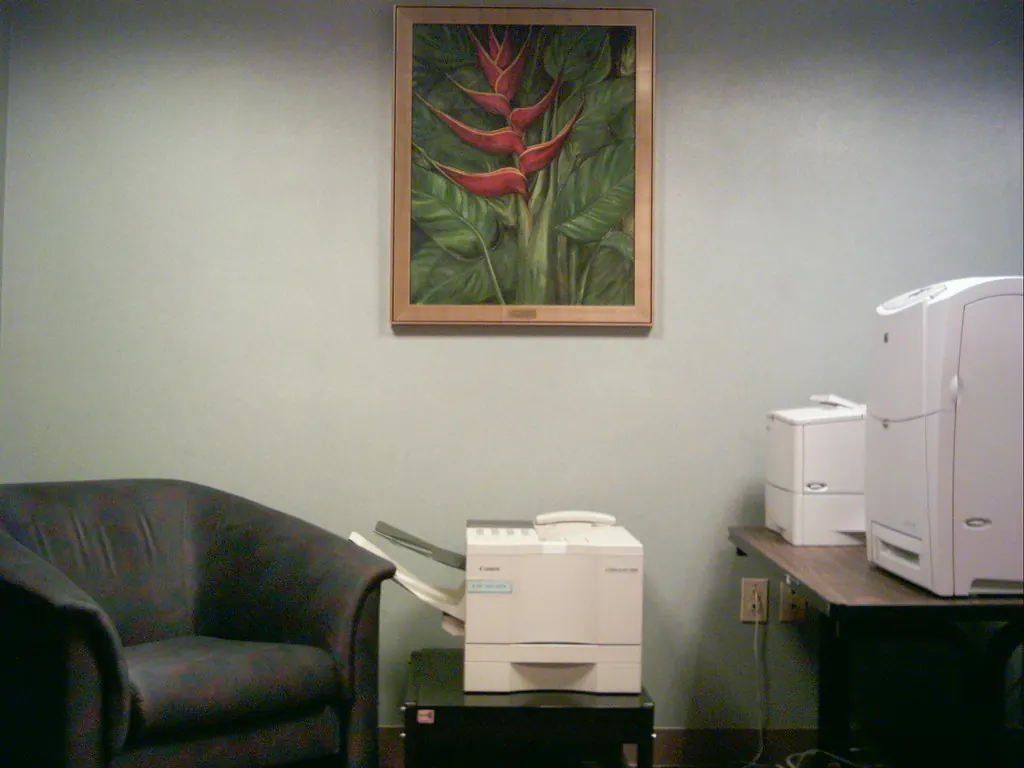
- Choose a central spot for shared equipment, such as the printer, close enough for everyone but away from desks so noise and foot traffic don’t disturb people.
- Put the router somewhere central and open, not inside a cupboard or behind a metal cabinet.
- Leave space for storage: shelves for paper and supplies, and lockable drawers if people handle confidential documents.
Checkpoint: every desk has power within reach, the printer is in a shared spot, and the router is central. The home office setup guide covers individual desk arrangement in more detail.
Set up the network and shared printer
- Sign in to the router’s settings using the details on its label or from your internet provider, and change the default admin password.
- Use WPA3 security if all your devices support it, or WPA2 if they don’t, with a long Wi-Fi password.
- Turn on a guest network for visitors and give its password out instead of the main one.
- Connect desktop computers and the printer by Ethernet where sockets are available; it is steadier than Wi-Fi for shared equipment.
- Connect the printer to the network using the steps in its manual, then add it on each computer. In Windows 11, open Settings > Bluetooth & devices > Printers & scanners and select Add device. On a Mac, open System Settings > Printers & Scanners. Our guide to connecting a printer to Wi-Fi explains each stage.
Checkpoint: every computer can print a test page, and visitors can get online without the main Wi-Fi password.
Set up accounts, files and backups
- Give each person their own sign-in on their computer. Use standard accounts for everyday work and keep one administrator account for the person who manages the office.
- Choose one shared storage location for team files and agree on a folder structure, for example one folder per client or project.
- Set permissions so people can reach the folders they need, and nothing else.
- Turn on automatic updates on every computer and keep the router and printer software updated through their official apps or settings.
- Set up backups for shared files and for anything stored only on individual computers. Our backup tutorial explains a simple plan.
Write an office handbook
- List each device with its model name, serial number, purchase date and where its manual or support page lives.
- Record the router location, Wi-Fi network names and where passwords are kept securely, such as in a password manager. Don’t write passwords on the handbook itself.
- Note who manages accounts and who to ask when something stops working.
Check that it worked
On the first working day, ask each person to sign in, open a shared file, save a change, print a page and join a test video call. Everything should work without anyone needing the administrator password. A week later, check that backups have run and that updates installed on every computer.
If something goes wrong
- One computer can’t find the printer: check it is on the main office network, not the guest network, then add the printer again.
- Wi-Fi is weak at some desks: move the router to a more central spot, use Ethernet for those desks, or add a mesh system or access point from the router’s maker.
- Someone can’t open a shared folder: check the folder’s sharing permissions and that they are signed in with their own account.
- Software won’t install on a standard account: that is expected. The administrator installs approved software from official sources.
- Backups haven’t run: check the backup drive or service is connected and has free space, then run a backup manually.
For router, printer or software faults, contact the maker through its official support website or a qualified IT professional.
FAQ
Do small offices need special business equipment?
Not always. Many home-grade routers and printers work well for a few people. Business models often add management features, longer support periods and higher workloads, so compare them against how many people will share each device.
Should everyone have administrator access?
No. Everyday work in standard accounts limits the damage malware or mistakes can do. Keep administrator access to one or two people who manage the office.
Is a guest Wi-Fi network really necessary?
It is a simple, low-effort way to keep visitors’ devices apart from office computers and printers. Most routers include it as a standard setting.
Where should shared files live?
In one agreed place, either a cloud storage service or a network folder, with a backup. Keeping files on individual desktops makes them hard to share and easy to lose.
When should we bring in an IT professional?
When you handle sensitive data, need remote access for staff, run your own servers or simply don’t have time to manage the setup. A professional can also review security against any rules your industry follows.
Official documentation
- Microsoft Support: Add or install a printer in Windows
- Microsoft Support: Manage user accounts in Windows
- Wi-Fi Alliance: Security
These links go to official help pages from software and device makers or US government agencies. GuideTutor is not affiliated with them. When their instructions differ from ours, follow theirs.