Essential Office Equipment Checklist for Home and Small Offices
An office equipment checklist for home and small offices: the essential technology, the useful extras and what to check before you buy.
- By GuideTutor Editorial Team
- Published
- Last reviewed
- 5 min read
- Level
- Beginner
- Time needed
- 30 minutes to review, longer if you are buying
- Works with
- Home offices and small offices of a few people; Windows or Mac
You’ll need
- A list of the work you do each week
- The model names of devices you already own
- A notepad or spreadsheet to record what you have and what you need
In short
This office equipment checklist sorts workspace technology into three groups: the essentials almost every office needs, the extras that depend on your work, and the things you should check before buying anything. Use it to audit what you already have, spot gaps and avoid buying devices that don’t work together. The most important tip: check how each new device connects to your computer before you buy it.
Before you start
The checklist suits a single home office as well as a small office shared by a few people. It doesn’t recommend brands or models, and it doesn’t list prices, because both change constantly. Instead it tells you what to look for so you can compare options yourself.
Start by listing the work you do in a typical week, for example “video calls every day, print contracts twice a week, edit spreadsheets”. Each item on the checklist should support something on that list. If it doesn’t, it is probably an extra you can skip for now.
Key terms
- Peripheral: any device that connects to a computer, such as a monitor, keyboard, printer or webcam.
- Multifunction printer: a printer that can also scan and copy, and sometimes fax.
- Port: a socket on a device where a cable plugs in, such as USB-C, USB-A or HDMI.
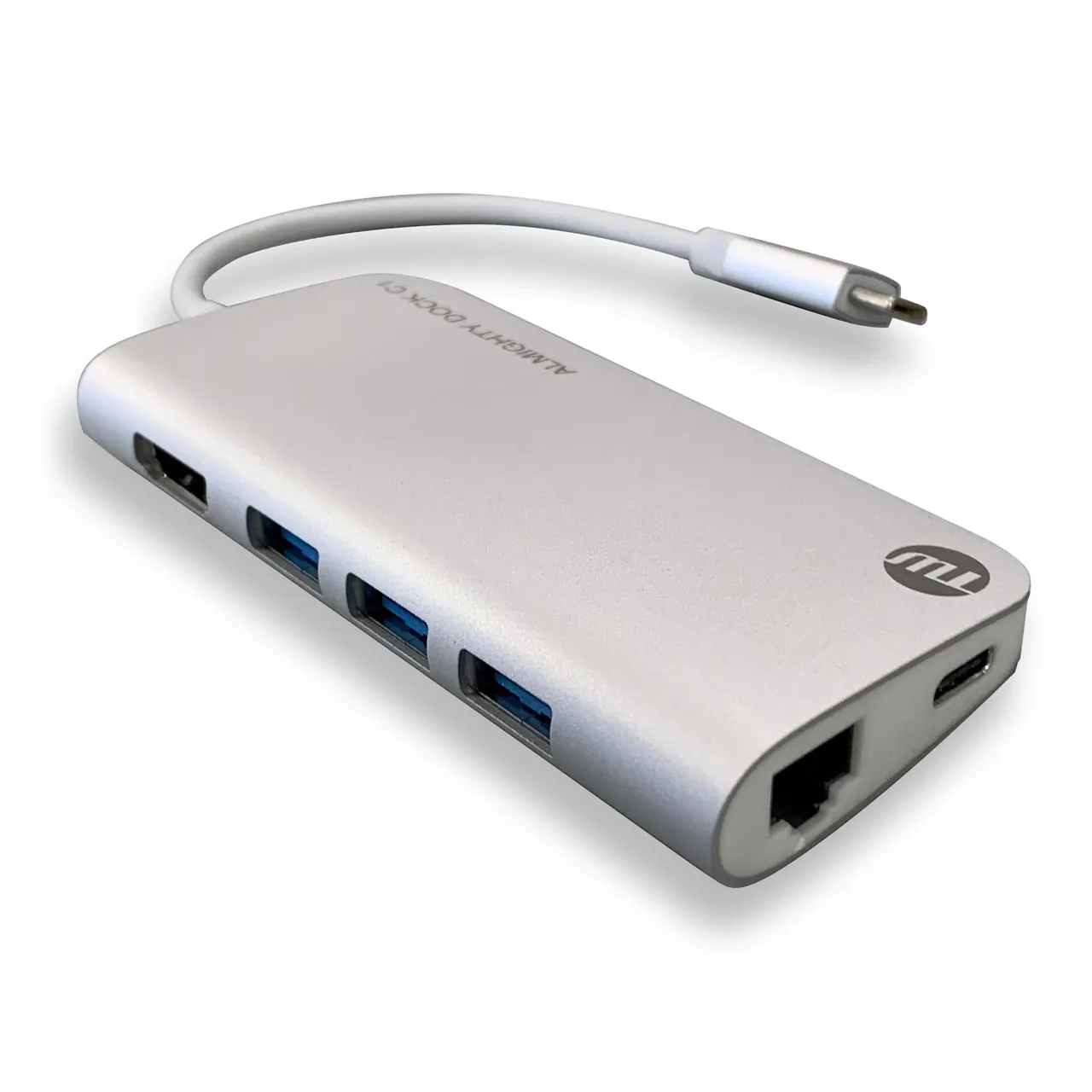
- Docking station: a hub that connects a laptop to a monitor, network, charging and accessories through one cable.
- ENERGY STAR: a US government-backed label for equipment that meets energy-efficiency requirements.
The essentials checklist
Work through this list and mark each item as “have”, “need” or “not needed”.
- A computer that suits the work. A laptop if you move around, a desktop if you always work at one desk. Check that it runs a supported version of Windows or macOS and receives security updates.
- A comfortable chair and a desk at the right height. These affect your day more than any gadget. See the ergonomic desk setup guide for the measurements that matter.
- A screen at eye level. An external monitor, or a laptop stand with a separate keyboard and mouse.
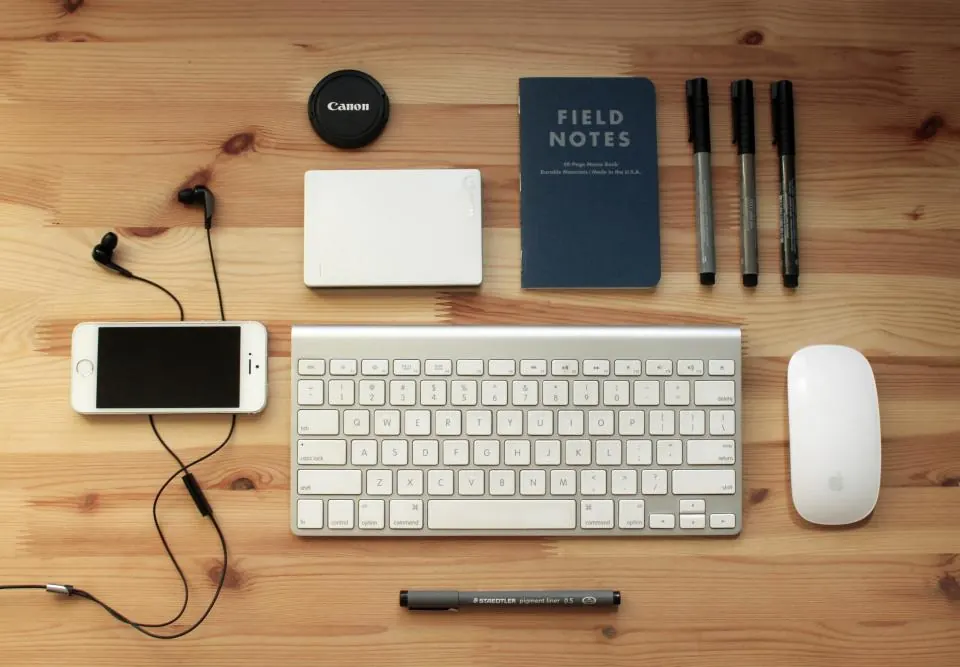
- A keyboard and mouse you find comfortable. Wired or wireless both work well; wireless ones need charging or batteries.
- A reliable internet connection with a router placed where the signal reaches your desk.
- A surge-protected power strip with enough outlets for your desk devices.
- A backup method: an external drive, a cloud storage service, or both.
- A headset or earbuds with a microphone if you join calls.
Checkpoint: if every essential is marked “have”, your office is ready for everyday work. Anything marked “need” is your shopping list, in order of priority.
Extras that depend on your work
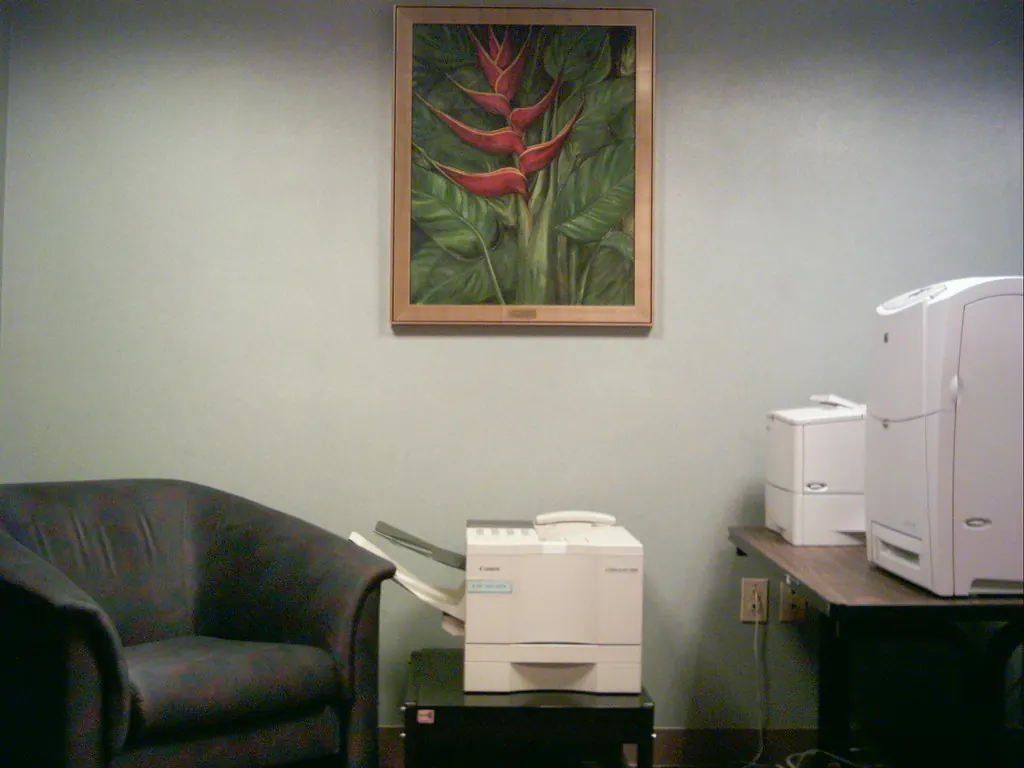
- A printer, if you print more than occasionally. A multifunction printer adds scanning for receipts and signed documents. Our printer tutorials cover setup and Wi-Fi connection.
- A second monitor, if you compare documents, use spreadsheets or keep a call open while you work.
- A docking station or USB hub, if your laptop has few ports or you connect and disconnect it every day.
- An external webcam and a desk lamp, if you are on camera often and the built-in camera or room lighting isn’t enough.
- A battery backup (UPS), if losing power mid-task would cost you work, or if your area has frequent short outages.
- Storage and organization: a filing tray, labeled boxes for cables, and a shelf to keep the desk clear.
- A shredder, if you handle paper with personal or financial information.
Check before you buy
- Connections: look at the ports on your computer and the device. If they don’t match, note which adapter or cable you would need, and make sure it supports what you need, such as video or charging.
- Compatibility: check the maker’s website for support for your operating system, for example Windows 11 or the current version of macOS.
- Setup method: printers and webcams usually need the maker’s official app or driver. Make sure it is available for your system before buying.
- Energy use: for computers, monitors and printers, the ENERGY STAR product finder lets you compare efficient models.
- Space and power: measure where the device will go, and count the outlets you have left.
- Ongoing costs: printers use ink or toner, and some devices need subscriptions for extra features. Check what a model needs before you commit.
Check that it worked
Use your completed checklist for a week. Each essential should be in place and working, and you should be able to do every task on your weekly list without borrowing equipment or improvising. Keep the list with your device model names, purchase dates and warranty details; it becomes your office inventory and makes support requests and replacements much easier.
If something goes wrong
- A new device won’t connect: check the cable or adapter supports the right function, then install the maker’s official app or driver. Our guide to docking stations and adapters explains common mismatches.
- You’ve run out of outlets: don’t chain power strips together. Move rarely used devices to another outlet or unplug them when not needed.
- The desk is overcrowded: move the printer and router off the desk, and mount or stand the monitor to free surface space.
- You’re not sure a device is still supported: check the maker’s support site for driver and update availability for your operating system.
For warranty, returns or product faults, contact the seller or the device maker through their official website.
FAQ
What is the most important item on the list?
A comfortable chair and a screen at eye level, because you use them all day. After those, a reliable internet connection and a backup method protect your time and your files.
Do I need a printer in a modern office?
Not always. Many people sign and share documents digitally. If you print forms, labels or contracts regularly, a printer saves trips elsewhere, and a multifunction model also scans.
Should I choose a laptop or a desktop?
Choose a laptop if you move between rooms or travel, and a desktop if you always work at the same desk and want a larger screen. Many people use a laptop with a docking station and monitor to get both.
How often should I review the checklist?
Review it when your work changes, when you add a person to the office, or once a year. It is also worth checking when a device stops receiving updates.
Is more expensive equipment always better?
No. Equipment that matches your work and connects easily to what you have is the better choice. Read the maker’s specifications and support information rather than relying on marketing claims.
Official documentation
These links go to official help pages from software and device makers or US government agencies. GuideTutor is not affiliated with them. When their instructions differ from ours, follow theirs.