Video Conferencing & Collaboration
How to Set Up a Webcam, Microphone and Lighting for Video Calls
A practical video call setup guide: position your webcam, choose and test a microphone, light your face well and fix common camera and sound problems.
- By GuideTutor Editorial Team
- Published
- Last reviewed
- 5 min read
- Level
- Beginner
- Time needed
- 20–30 minutes
- Works with
- Windows 11 and 10, macOS; built-in or USB webcams and microphones; common video meeting apps
You’ll need
- A computer with a built-in or external webcam
- A headset, earbuds with a microphone, or an external microphone
- A lamp or window you can face
- The video meeting app you use for work
In short
A good video call setup puts the camera at eye level, your face in soft light from the front, and a microphone close to your mouth. None of this needs expensive equipment; small changes to position and lighting make the biggest difference. This guide covers each part, how to test it, and how to fix the common camera and microphone problems on Windows and Mac. The key tip: a headset or earbuds with a microphone usually sound clearer than a laptop’s built-in microphone, and stop echo.
Before you start
These steps work with most video meeting apps, including Microsoft Teams, Zoom and Google Meet. Each app has its own audio and video settings, usually under Settings or a gear icon, and most offer a test call or preview.
If you use an external webcam or microphone, plug it in before opening the meeting app. Wireless headsets connect over Bluetooth; our guide to pairing Bluetooth devices shows how.
Key terms
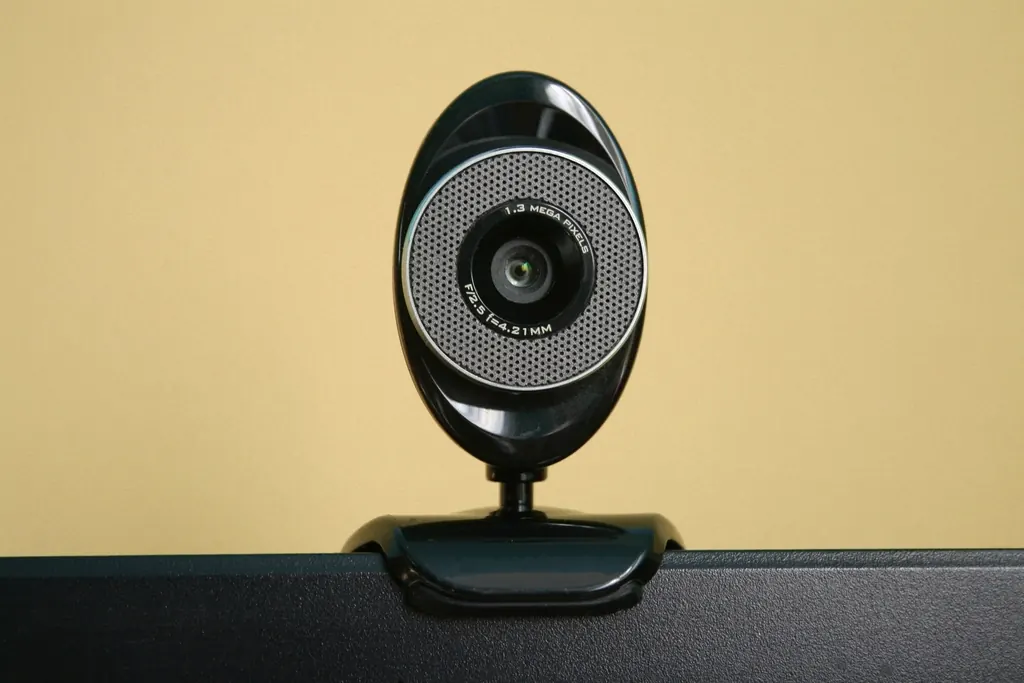
- Webcam: a camera built into the screen or connected by USB for video calls.
- Echo: when your microphone picks up sound from your speakers, so others hear themselves repeated.
- Background noise suppression: a feature in many meeting apps that reduces sounds like typing or traffic.
- Backlighting: strong light behind you, such as a window, which makes your face appear dark.
- Input device: the microphone your computer or app is listening to. Output device is where you hear sound.
Position the camera
- Raise the camera to eye level. For a laptop, place it on a stand or a stack of books; for a monitor, clip an external webcam to the top center.
- Sit about an arm’s length from the camera so your head and shoulders fill the frame with a little space above your head.
- Look at what’s behind you. A tidy wall or bookshelf is fine; turn on the app’s background blur if you prefer.
- Clean the camera lens gently with a dry microfiber cloth.
Checkpoint: in the app’s video preview, your eyes are roughly a third of the way down the frame and you’re looking straight ahead, not up or down.
Light your face
- Face your main light source. A window in front of you, or a lamp behind the screen, lights your face evenly.
- Avoid sitting with a bright window behind you. If you can’t move, close the blinds and add a lamp in front.
- Use soft light: bounce a lamp off a pale wall or use a lampshade instead of a bare bulb pointing at you.
- Turn off overhead lights that cast shadows under your eyes if a front light is available.
Set up and test the microphone
- Use a headset or earbuds with a microphone if you have them. They pick up your voice clearly and stop echo.
- Choose the right devices in your computer settings. In Windows 11, open Settings > System > Sound and pick your microphone under Input. On a Mac, open System Settings > Sound and choose it under Input.
- Speak normally and watch the input level meter move. If it barely moves, increase the input volume; if it hits the top constantly, reduce it.
- In your meeting app’s audio settings, select the same microphone and speaker, and turn on background noise suppression if offered.
- Make a test call or recording and listen back.
Checkpoint: your voice sounds clear and even in the test, without echo or background hum.
Check app permissions
- In Windows 11, open Settings > Privacy & security > Camera and Microphone, and make sure access is on for apps and for your meeting app.
- On a Mac, open System Settings > Privacy & Security > Camera and Microphone and turn on access for your meeting app.
- Restart the meeting app after changing permissions.
Check that it worked
Join a test call, or record a short clip in your meeting app, and review it: your face should be evenly lit and at eye level, your voice clear, and no echo when the other side talks. If you can, ask a colleague to join a two-minute call and tell you honestly how you look and sound. If video stutters, check your connection with our home office internet guide.
If something goes wrong
- The camera shows a black screen: check the privacy shutter and camera key, confirm camera permissions, and close other apps that might be using the camera.
- Others can’t hear you: check the microphone isn’t muted in the app or on the headset, and that the right input device is selected in both the app and system settings.
- People hear an echo: use headphones, lower the speaker volume, or turn on echo cancellation in the app.
- Your voice sounds distant or noisy: move the microphone closer, turn on noise suppression, and reduce background sounds such as fans.
- The image is grainy: add more light in front of you; webcams struggle in dim rooms.
- An external webcam isn’t detected: connect it directly to the computer rather than through a hub, and install updates from Windows Update, macOS Software Update or the webcam maker’s official site.
For app-specific problems, use the meeting app’s official help center. For device faults, contact the device maker.
FAQ
Do I need an external webcam?
Not always. A built-in camera at eye level with good lighting works well for most calls. An external webcam helps if you use an external monitor or want sharper video.
Which is better, a headset or a desk microphone?
A headset is simple and stops echo. A desk microphone can sound more natural but picks up more of the room, so use it with headphones.
Why does my video look dark?
Usually because the brightest light is behind you. Turn to face a window or put a lamp in front of you.
How do I stop my keyboard noise being heard?
Mute when you’re not speaking, turn on noise suppression, and use a headset microphone close to your mouth.
Can I use my phone as a webcam?
Some phones and computers support this with built-in features or the meeting app’s mobile version. Check your device maker’s and meeting app’s official instructions.
Official documentation
These links go to official help pages from software and device makers or US government agencies. GuideTutor is not affiliated with them. When their instructions differ from ours, follow theirs.