How to Connect a Laptop to an External Monitor
Learn how to connect a laptop to a monitor with HDMI, DisplayPort or USB-C, choose the right cable, and set up the screen on Windows or Mac.
- By GuideTutor Editorial Team
- Published
- Last reviewed
- 5 min read
- Level
- Beginner
- Time needed
- 15–30 minutes
- Works with
- Windows 11 and 10 laptops, MacBook laptops; monitors with HDMI, DisplayPort or USB-C inputs
You’ll need
- Your laptop and its charger
- A monitor with its power cable
- A video cable or adapter that matches both the laptop and the monitor
- The laptop’s model name, to check its ports on the maker’s support site
In short
To connect a laptop to a monitor you need a cable that matches a video port on the laptop and an input on the monitor, then a minute in the display settings to choose how the screens work together. This guide helps you identify the ports, pick the cable, connect and set up the screen on Windows or Mac. The most important tip: not every USB-C port carries video, so check your laptop’s specifications before buying a USB-C cable or adapter.
Before you start
These steps cover Windows 11, Windows 10 and macOS laptops. Look at the sides of the laptop and the back or underside of the monitor and note which ports each has. Our computer basics tutorial shows what common ports look like.
Check the laptop maker’s support page for your model. It lists which ports support video and how many external screens the laptop can drive. Some Mac models support only one external display, so check Apple’s page for your model if you plan to add more.
Key terms
- HDMI: a common video and audio connection found on many laptops, monitors and TVs.
- DisplayPort: a video connection common on monitors and business laptops. Mini DisplayPort is a smaller version.
- USB-C with video: some USB-C ports also carry a video signal, often labeled with a DisplayPort or Thunderbolt symbol.
- Extend: a display mode where the monitor adds extra desktop space next to the laptop screen.
- Duplicate or mirror: a mode where the monitor shows exactly what the laptop screen shows.
- Resolution: the number of pixels a screen shows. Each monitor has a recommended (native) resolution that looks sharpest.
Choose the right cable
- Find a video port on the laptop: HDMI, DisplayPort, Mini DisplayPort, or a USB-C or Thunderbolt port that supports video.
- Find a matching input on the monitor: HDMI, DisplayPort or USB-C.
- If the two match, use a straight cable of that type, such as HDMI to HDMI.
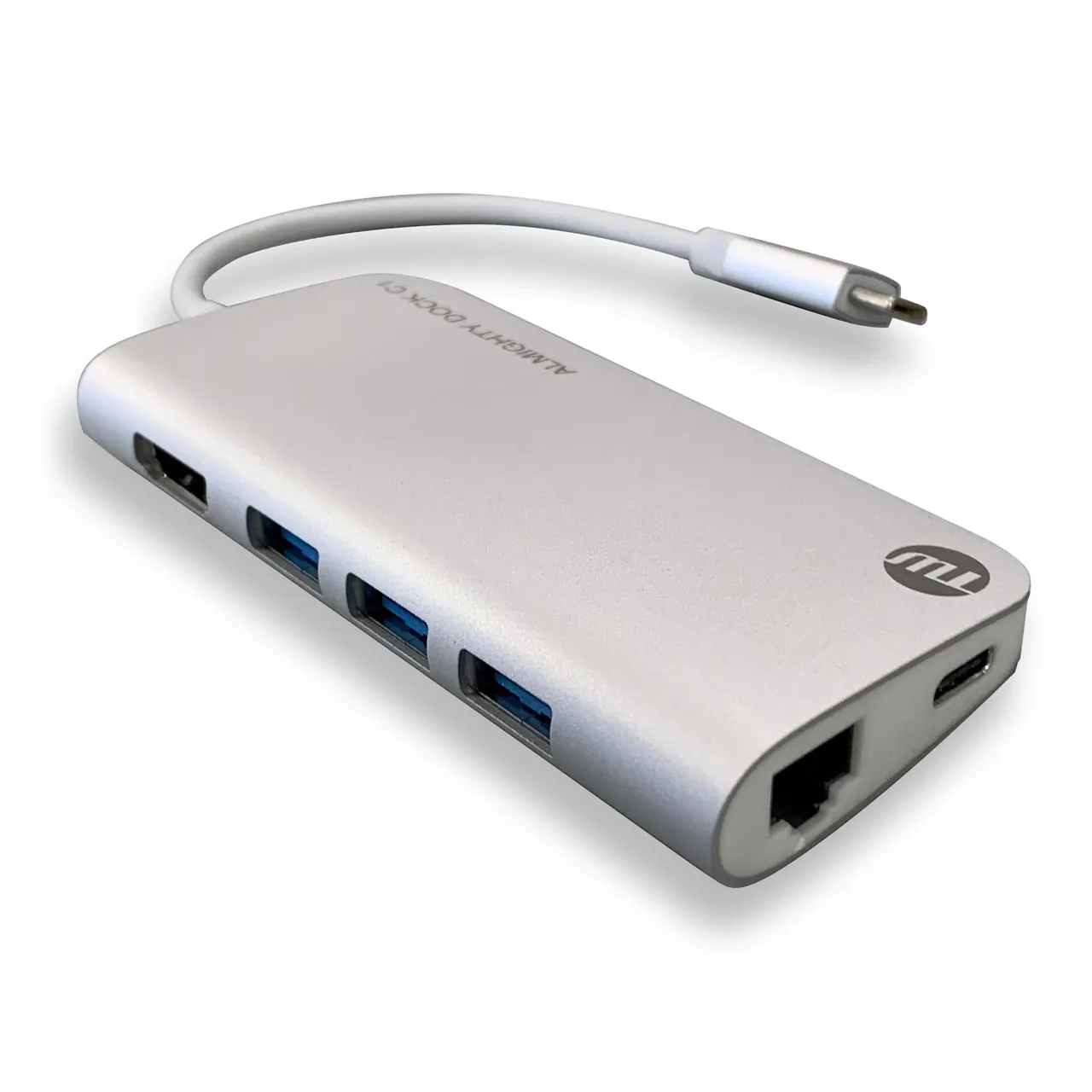
- If they don’t match, use a single cable or adapter that converts between them, such as USB-C to HDMI. Check the product description says it supports video, not only charging or data.
- Keep the cable reasonably short and avoid stacking several adapters, which often causes flickering or no picture.
Checkpoint: you have one cable or adapter that plugs into both the laptop and the monitor without force.
Connect and switch on
- Place the monitor at the back of the desk, about an arm’s length away, with the top of the screen at or slightly below eye level.
- Connect the monitor’s power cable and switch it on.
- Plug the video cable into the monitor, then into the laptop.
- Connect the laptop charger, because driving an external screen uses more power.
- If the monitor shows “No signal”, use its buttons or menu to choose the input you connected, such as HDMI 1 or DisplayPort.
Checkpoint: the monitor shows your desktop or a copy of your laptop screen within a few seconds.
Set up the display
Windows 11 and Windows 10
- Press the Windows logo key + P to choose a mode: PC screen only, Duplicate, Extend or Second screen only. Choose Extend for extra space.
- Open Settings > System > Display to see both screens as numbered boxes. Select Identify to see which is which.
- Drag the boxes so they match the physical position of the screens, then select Apply.
- Select the monitor and check that Display resolution is set to the option marked Recommended.
- To make the monitor your main screen with the taskbar and new windows, select it and tick Make this my main display.
Mac
- Open the Apple menu, then System Settings > Displays.
- Select Arrange to drag the screens into position, or choose whether the monitor is the main display, an extended display or a mirror.
- Select the monitor and choose a resolution. The default option is usually the sharpest.
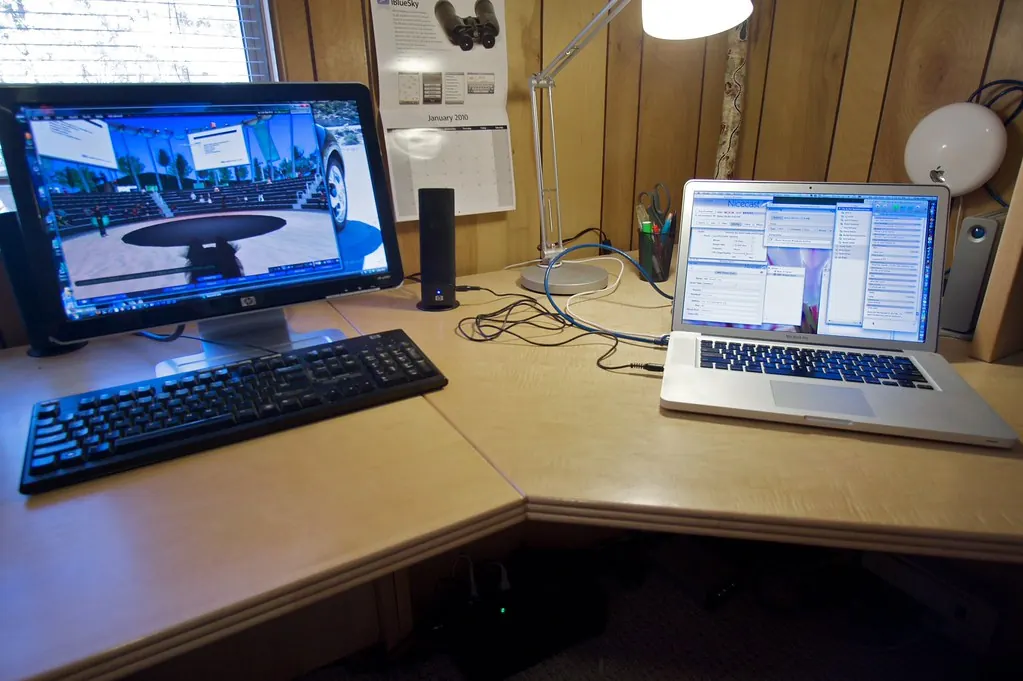
For a two-screen layout with the laptop beside a monitor, see how to build a dual-monitor workspace.
Check that it worked
Drag a window from the laptop screen to the monitor. It should move smoothly across the edge you arranged, without jumping to the wrong side. Text on the monitor should look crisp, not blurry or stretched. If you use the monitor’s speakers, play a sound and check it comes from the expected device.
If something goes wrong
- The monitor says “No signal”: check its input setting, reseat both ends of the cable and restart the laptop with the cable connected.
- USB-C gives no picture: that port may not support video. Try another USB-C port, or check the laptop maker’s specifications. Microsoft’s USB-C troubleshooting page also helps on Windows.
- The picture is blurry or stretched: set the monitor’s recommended resolution, and in Windows check the Scale setting on the Display page.
- The screen flickers or goes black: try a different cable, remove extra adapters, and update the graphics driver through Windows Update or the laptop maker’s support site.
- The mouse leaves the wrong edge: rearrange the screen boxes in the display settings to match the desk.
If the monitor still isn’t detected with a known good cable, contact the laptop or monitor maker through their official support site.
FAQ
Can I use a TV as a laptop monitor?
Yes, most TVs with HDMI inputs work. Text may look less sharp up close than on a monitor, and some TVs need a picture mode called PC or Game for the best result.
Do I need a docking station?
Not for one monitor. A dock is useful when you also want charging, a wired network and several accessories through one cable. Our guide to docking stations and USB hubs explains when one helps.
Can I close the laptop lid and use only the monitor?
Usually, yes, as long as the laptop is plugged in and an external keyboard and mouse are connected. On Windows, the lid close action is in the power settings; on a Mac, this works automatically with power and an external keyboard or mouse connected.
Why does my laptop only support one external monitor?
The number of screens depends on the laptop’s graphics hardware and ports. The maker’s specifications for your model say how many it supports.
Official documentation
- Microsoft Support: How to use multiple monitors in Windows
- Apple Support: How many displays can be connected to MacBook Pro
- OSHA eTools: Computer Workstations, Monitors
These links go to official help pages from software and device makers or US government agencies. GuideTutor is not affiliated with them. When their instructions differ from ours, follow theirs.