Docking Stations, USB Hubs and Adapters Explained
Docking station or USB hub? Learn what each does, which ports and features to check, and how to connect a laptop to screens and accessories with one cable.
- By GuideTutor Editorial Team
- Published
- Last reviewed
- 5 min read
- Level
- Beginner
- Time needed
- 20–40 minutes
- Works with
- Windows and Mac laptops with USB-C, Thunderbolt or USB-A ports; desktop computers for USB hubs
You’ll need
- Your laptop’s model name, to look up its ports
- A list of what you want to connect, such as monitors, keyboard, mouse, network cable and drives
- The laptop’s own charger, for comparison with the dock’s charging power
In short
A docking station connects a laptop to monitors, power, a wired network and accessories through one cable, so you can sit down and start work by plugging in once. A USB hub is simpler: it turns one port into several, mainly for keyboards, mice and drives. This guide explains the difference, what to check before buying, and how to set up either one. The key tip: match the dock to your laptop’s port and check the maker’s compatibility information for your exact model.
Before you start
Look at your laptop’s ports and check the maker’s specifications. Important questions are whether its USB-C ports carry video and accept charging, and whether they are Thunderbolt or USB4 ports, often marked with a lightning bolt symbol. Our computer basics tutorial shows the common port shapes.
Make a list of everything you want to connect at the desk. The list tells you how many ports of each type you need, and whether a hub is enough or you need a dock.
Key terms
- USB hub: a small device that splits one USB port into several. Some are powered by their own adapter.
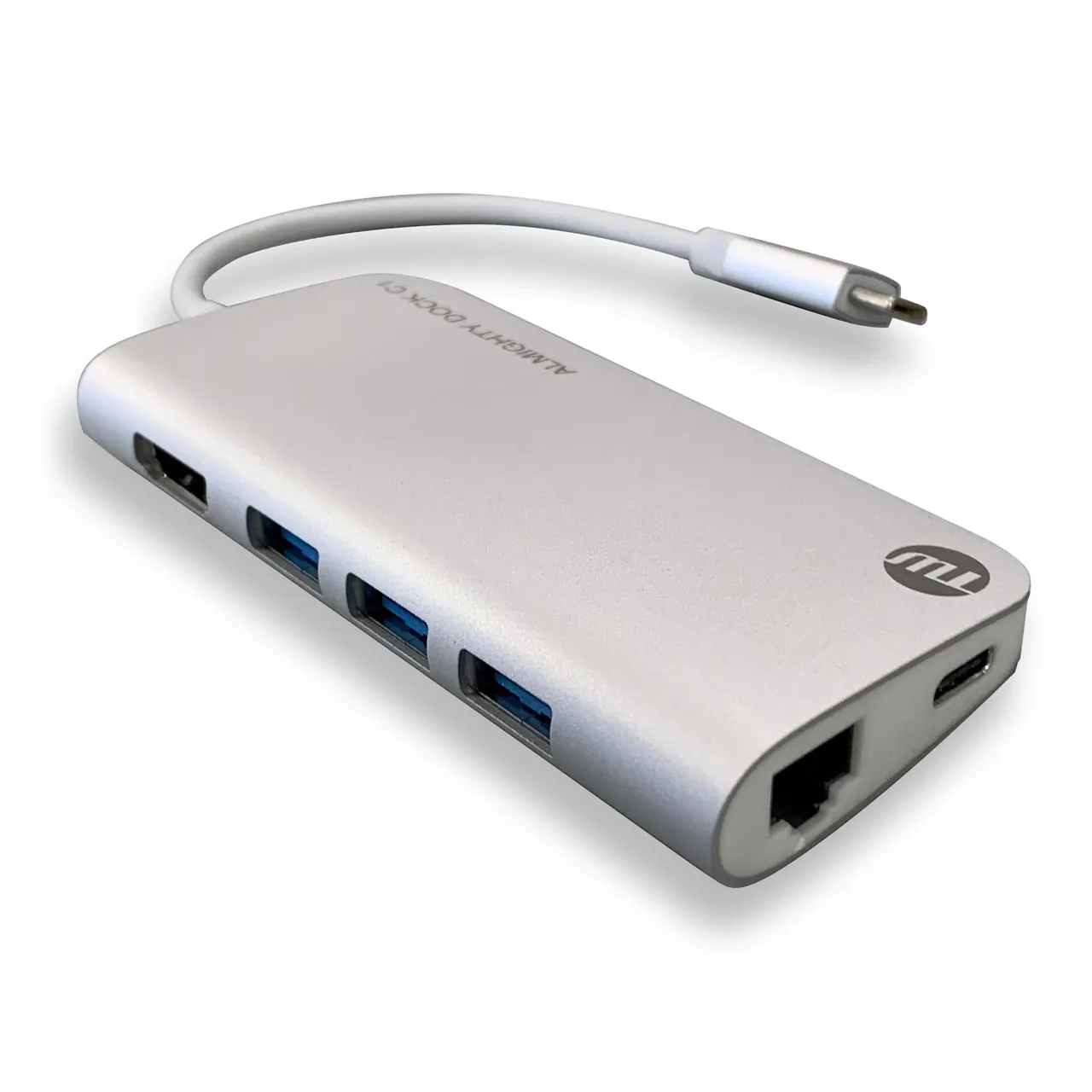
- Docking station (dock): a larger hub that adds video outputs, a network socket and usually charging for the laptop.
- Thunderbolt and USB4: fast connection standards that use the USB-C shape and can carry data, video and power together.
- Power Delivery (PD) or pass-through charging: the dock charges the laptop through the same cable. Docks list the power they can supply in watts.
- Driver-based video: some docks use technology that needs a driver from the dock maker to show video on extra screens.
Decide between a hub and a dock
- Count the devices on your list that need video, such as monitors. If there are none, a USB hub is usually enough.
- If you want a monitor, a wired network or charging through the same cable, choose a dock or a multiport adapter with those features.
- For two or more monitors from a laptop, check that both the dock and the laptop support that number of screens, and in which modes. Some combinations can only mirror the same image on extra screens.
- Compare the dock’s charging power with the wattage printed on your laptop’s charger. A dock that supplies less may charge slowly or not at all under heavy use.
- Check the dock maker’s compatibility list for your laptop model and operating system.
Checkpoint: you know which type you need and which port on the laptop it plugs into.
Set up a dock or hub
- Place the dock where its cable reaches the laptop comfortably without pulling.
- Connect the dock’s power adapter to a surge-protected power strip, if it has one.
- Connect your monitors, network cable, keyboard, mouse and other devices to the dock.
- Connect the dock to the laptop’s recommended port. The dock’s manual says which port type it needs; on many laptops it’s the USB-C or Thunderbolt port marked for charging or video.
- If the dock maker requires a driver or app, download it only from the maker’s official support site.
- Check for updates: install Windows Update, macOS updates and any firmware updates the dock maker offers through its official app.
- Set up the screens in your display settings. See how to build a dual-monitor workspace for arranging two screens.
Checkpoint: with one cable plugged into the laptop, the screens light up, the laptop shows it’s charging, and the keyboard and mouse respond.
Choose cables and adapters wisely
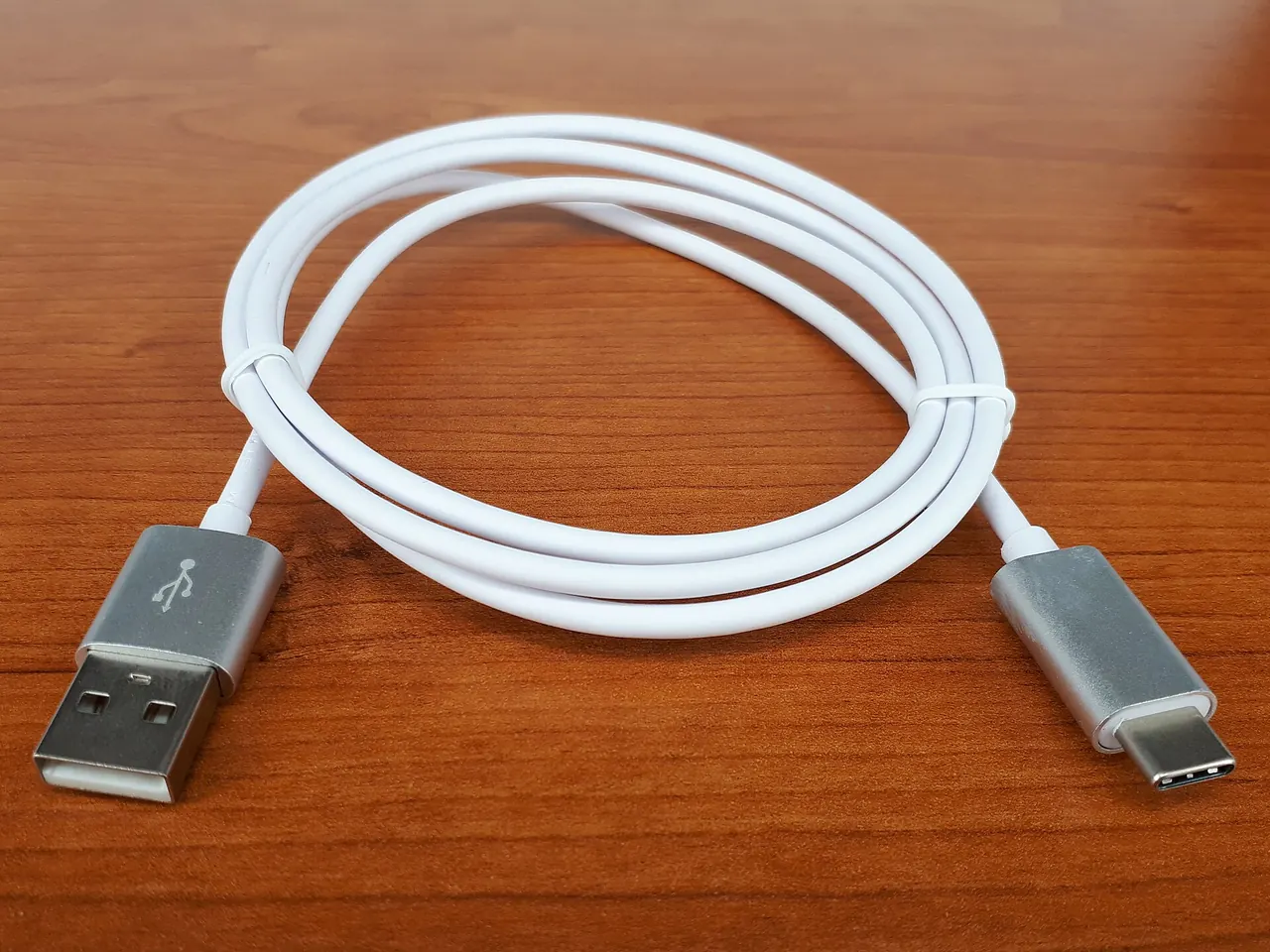
- Use the cable that came with the dock to connect it to the laptop. A different USB-C cable may not support the same speed, video or power.
- For single adapters, such as USB-C to HDMI, check the description lists the function you need.
- Avoid chaining adapters and hubs together; each extra link adds a chance of a poor connection.
- Label each end of the dock cable so it doesn’t get swapped for a charge-only cable.
Our guide to USB-C charging explains cable and charger ratings in more detail.
Check that it worked
Unplug the dock cable from the laptop, wait a few seconds and plug it back in. Your screens, network, keyboard and mouse should all reconnect, and the windows should return to the screens you arranged. Copy a large file to an external drive through the dock to check it transfers at a reasonable speed, and leave the laptop working for an hour to check the battery level holds or rises.
If something goes wrong
- No picture on the monitors: confirm the laptop’s port supports video, install the dock maker’s driver if it needs one, and check the monitor’s input setting.
- The laptop isn’t charging through the dock: check the dock’s power adapter is connected and that its charging power suits your laptop. Windows may show a “slow charger” message.
- Devices disconnect randomly: use the dock’s own cable, connect the dock’s power adapter, and install firmware and driver updates from the maker.
- Only one of two monitors works: the laptop or dock may support only one extra screen, or only mirroring, with your setup. Check both makers’ specifications.
- The hub’s ports stop working when a drive is connected: the hub may need more power. Use a powered hub with its own adapter.
For compatibility questions, contact the dock maker or laptop maker through their official support site.
FAQ
Will any USB-C dock work with my laptop?
Not always. USB-C is a connector shape, and the features behind it vary. Check the dock maker’s compatibility list for your laptop model and operating system.
Is a Thunderbolt dock better than a USB-C dock?
Thunderbolt docks generally offer more speed and display options, but they need a laptop with a Thunderbolt or compatible USB4 port. If your laptop doesn’t have one, a USB-C dock that suits its ports is the right choice.
Can a dock damage my laptop?
A dock from a reputable maker that is compatible with your laptop is designed to be safe. Avoid damaged cables and adapters, and use the power adapter supplied with the dock.
Do I need a dock for a desktop computer?
Usually not. Desktops have more ports, and a simple USB hub adds any extra ones you need at the front of the desk.
Should I leave the laptop plugged into the dock all the time?
Many people do. If your laptop maker offers a battery care setting that limits charging when it’s usually plugged in, consider turning it on.
Official documentation
- Microsoft Support: Fix USB-C problems in Windows
- Microsoft Support: How to use multiple monitors in Windows
These links go to official help pages from software and device makers or US government agencies. GuideTutor is not affiliated with them. When their instructions differ from ours, follow theirs.