How to Build a Dual-Monitor Workspace
Plan a dual monitor setup that works: check what your computer supports, connect two screens, arrange them on Windows or Mac and position them comfortably.
- By GuideTutor Editorial Team
- Published
- Last reviewed
- 5 min read
- Level
- Intermediate
- Time needed
- 30–60 minutes
- Works with
- Windows 11 and 10 desktops and laptops, Mac computers; monitors with HDMI, DisplayPort or USB-C inputs
You’ll need
- A computer that supports two external screens, or a laptop plus one monitor
- One or two monitors, with power cables
- Video cables or a docking station that suit your computer’s ports
- Enough desk depth to place screens about an arm’s length away
In short
A dual monitor setup gives you room to keep a reference document, a call or a chat open beside your main work. Building one takes three decisions: which two screens you will use, how they connect to your computer, and where they sit on the desk. This guide covers all three for Windows and Mac. The key tip: decide which screen is your main one and put it straight in front of you, rather than splitting the gap between two screens.
Before you start
There are two common layouts:
- Laptop plus one monitor: the laptop screen is the second display. This needs only one video connection.
- Two external monitors: a desktop computer, or a laptop with a dock or enough video ports, drives two monitors, and the laptop is often closed or set aside.
Check how many external displays your computer supports. Desktop graphics cards usually list their outputs on the back panel. Laptop makers publish the number of supported displays in the specifications, and Apple lists it for each Mac model. If you’re connecting just one screen to a laptop, start with how to connect a laptop to an external monitor.
Key terms
- Main display: the screen that shows the taskbar or menu bar and opens new windows by default.
- Extended desktop: both screens act as one wide desktop, so you can drag windows between them.
- Bezel: the frame around a monitor’s screen. Thin bezels make two side-by-side screens feel more continuous.
- Daisy chain: connecting a second monitor through the first one’s output port. Only some monitors and computers support it.
- Snap: a Windows feature that arranges windows into halves, thirds or quarters of a screen.
Plan the layout and connections
- Decide which screen you’ll look at most. Place it directly in front of you, centered on the keyboard.
- If you use both screens equally, place them so the join between them is in front of you, angled slightly inward.
- Check the computer’s ports and pick a cable for each monitor. Use a separate video port for each screen where possible.
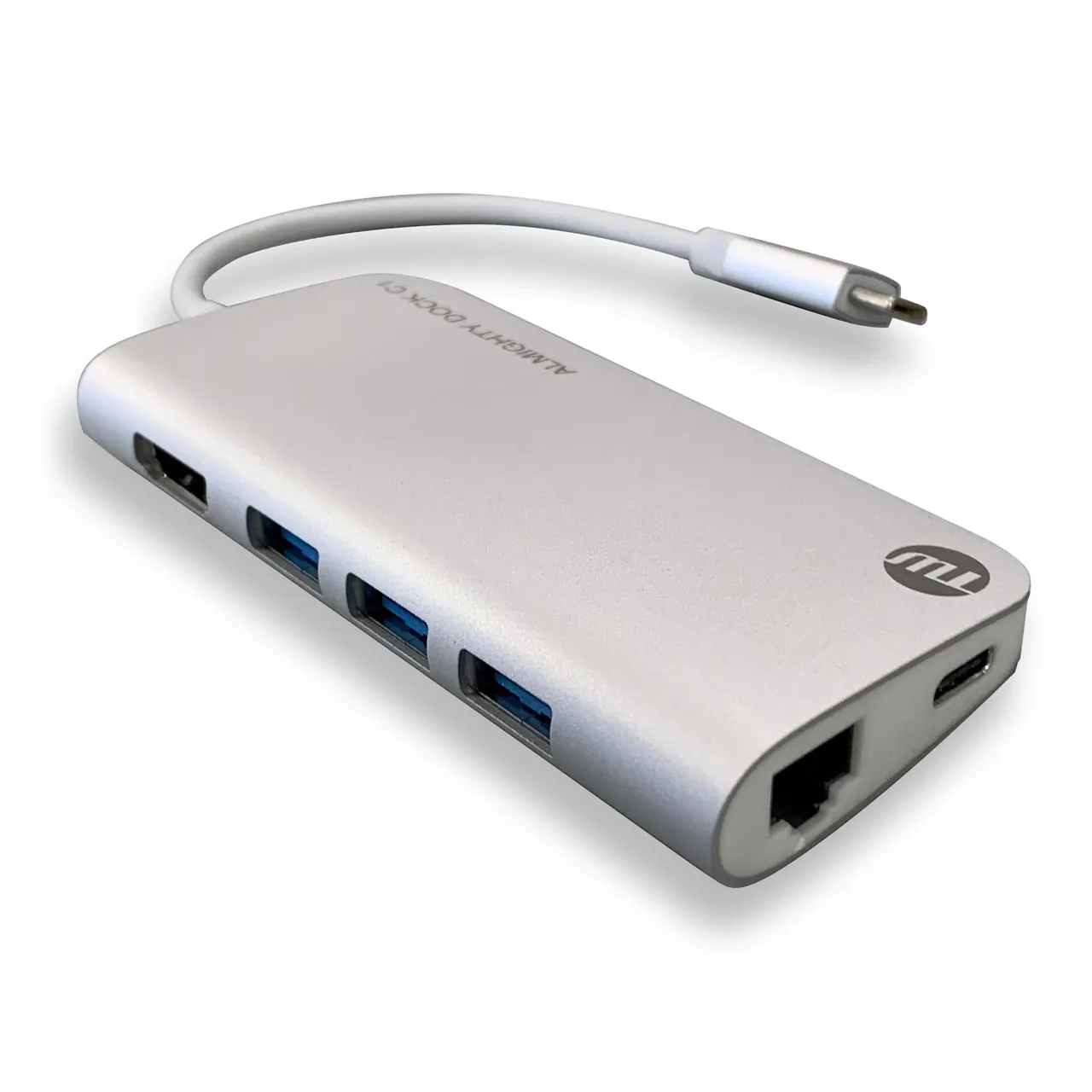
- If the laptop doesn’t have enough video ports, use a docking station that states it supports two external displays with your computer. Our guide to docking stations and USB hubs explains what to check.
- Match the screens if you can: two monitors with the same size and resolution look more even, although mixed screens work fine.
Checkpoint: you know which cable connects each screen, and your computer supports that number of displays.
Connect and arrange the screens
Windows 11 and Windows 10
- Connect both monitors to power, then connect the video cables and switch them on.
- Press the Windows logo key + P and choose Extend.
- Open Settings > System > Display, select Identify, then drag the numbered boxes to match the screens’ positions on your desk. Line up their top edges if the monitors are the same height.
- Select your main screen and tick Make this my main display.
- Set each screen to its recommended resolution, and adjust Scale so text appears a similar size on both.
- Use Windows logo key + Left arrow or Right arrow to snap windows to half of a screen, and Windows logo key + Shift + Left arrow or Right arrow to move a window to the other screen.
Mac
- Connect the monitors and open the Apple menu, then System Settings > Displays.
- Select Arrange and drag the screens to match the desk. Drag the white menu bar onto the screen you want as the main display.
- Choose a resolution for each screen. The default is usually the clearest.
Checkpoint: the pointer moves across the shared edge of the two screens exactly where they meet on the desk.
Position the screens comfortably
- Set both screens about an arm’s length away. Larger screens can sit a little further back.
- Put the top of each screen at or slightly below eye level. If one screen is a laptop, raise it on a stand so both are at similar heights.
- Angle the side screen slightly toward you so you turn your eyes and head, not your whole body.
- Keep the main screen’s center in line with your keyboard and chair.
The ergonomic desk setup guide covers chair and keyboard positions to go with this.
Check that it worked
Open two apps, such as a document and a browser, and snap one to each screen. Move between them for ten minutes of normal work. You should not need to twist your neck far to look at either screen, the pointer should cross where the screens meet, and text should look similarly sized and sharp on both.
If something goes wrong
- Only one monitor is detected: check each cable separately with the other unplugged, confirm the monitor’s input setting, and check the computer supports two external screens.
- Both screens show the same thing: switch from Duplicate to Extend with Windows logo key + P on Windows, or in Displays on a Mac.
- Windows open on the wrong screen: set the screen you want as the main display.
- Text sizes look different: adjust Scale on Windows, or choose a different resolution on Mac, so the screens match more closely.
- A dock shows the same image on both monitors: some docks and computers support only mirrored output on a second screen; check the dock maker’s compatibility information.
For hardware faults or compatibility questions, contact the computer, monitor or dock maker through their official support site.
FAQ
Do the two monitors need to be the same?
No. Different sizes and resolutions work, but matching screens look neater and avoid windows changing size as you drag them across.
Is a single wide monitor better than two?
It depends on how you work. An ultrawide screen gives one continuous area without a bezel in the middle; two screens make it easy to keep apps apart and can be angled separately.
Can I use different wallpapers on each screen?
Yes. Windows and macOS both let you set a picture per display in their personalization or wallpaper settings.
Will two monitors slow my computer down?
Everyday office work on two screens is fine for most modern computers. Demanding tasks such as video editing on high-resolution screens put more load on the graphics hardware.
Official documentation
- Microsoft Support: How to use multiple monitors in Windows
- Microsoft Support: Snap your windows
- Apple Support: How many displays can be connected to MacBook Pro
These links go to official help pages from software and device makers or US government agencies. GuideTutor is not affiliated with them. When their instructions differ from ours, follow theirs.