Office Organization & Cable Management
How to Organize Your Office Technology and Manage Cables
A step-by-step cable management and desk organization guide: plan device placement, route and label cables, and keep office technology tidy and safe.
- By GuideTutor Editorial Team
- Published
- Last reviewed
- 5 min read

- Level
- Beginner
- Time needed
- 1–2 hours
- Works with
- Any desk with a computer, monitor and accessories; home offices and small offices
You’ll need
- Reusable hook-and-loop cable ties
- Cable clips, a cable tray or a sleeve
- Small labels or a label maker
- A surge-protected power strip
- A box or bag for cables you don’t use daily
In short
Good cable management turns a tangle behind the desk into a tidy layout where you can see what connects to what, plug in a laptop with one movement and clean without unplugging everything. This guide shows you how to plan device placement, route and fasten cables, label them, and store the ones you rarely use. The key tip: unplug and lay everything out first; trying to tidy cables while they’re all connected rarely works.
Before you start
Set aside an hour or two when you don’t need the computer. Take a photo of the back of each device before you unplug anything, so you can see what went where.
Key terms
- Cable tray: a basket or channel fixed under the back of the desk that holds a power strip and spare cable length.
- Cable sleeve: a flexible tube that bundles several cables into one neat run.
- Hook-and-loop tie: a reusable fabric strap that holds cables together without crushing them.
- Service loop: a little spare cable left at each end so devices can move slightly without pulling the plug.
- Grommet: a hole in a desktop, often with a cover, for passing cables through.
Plan where everything goes
- Unplug everything and lay the cables on the floor in groups: power, video, network, USB and audio.
- Remove any cable that no longer connects to anything and put it in the spare-cables box.
- Decide where each device lives. Keep what you touch daily within reach and move the rest, such as the printer, router or desktop tower, off the desk surface.
- Place the power strip where its cables are short: under the desk in a tray, or on the floor at the back, away from feet.
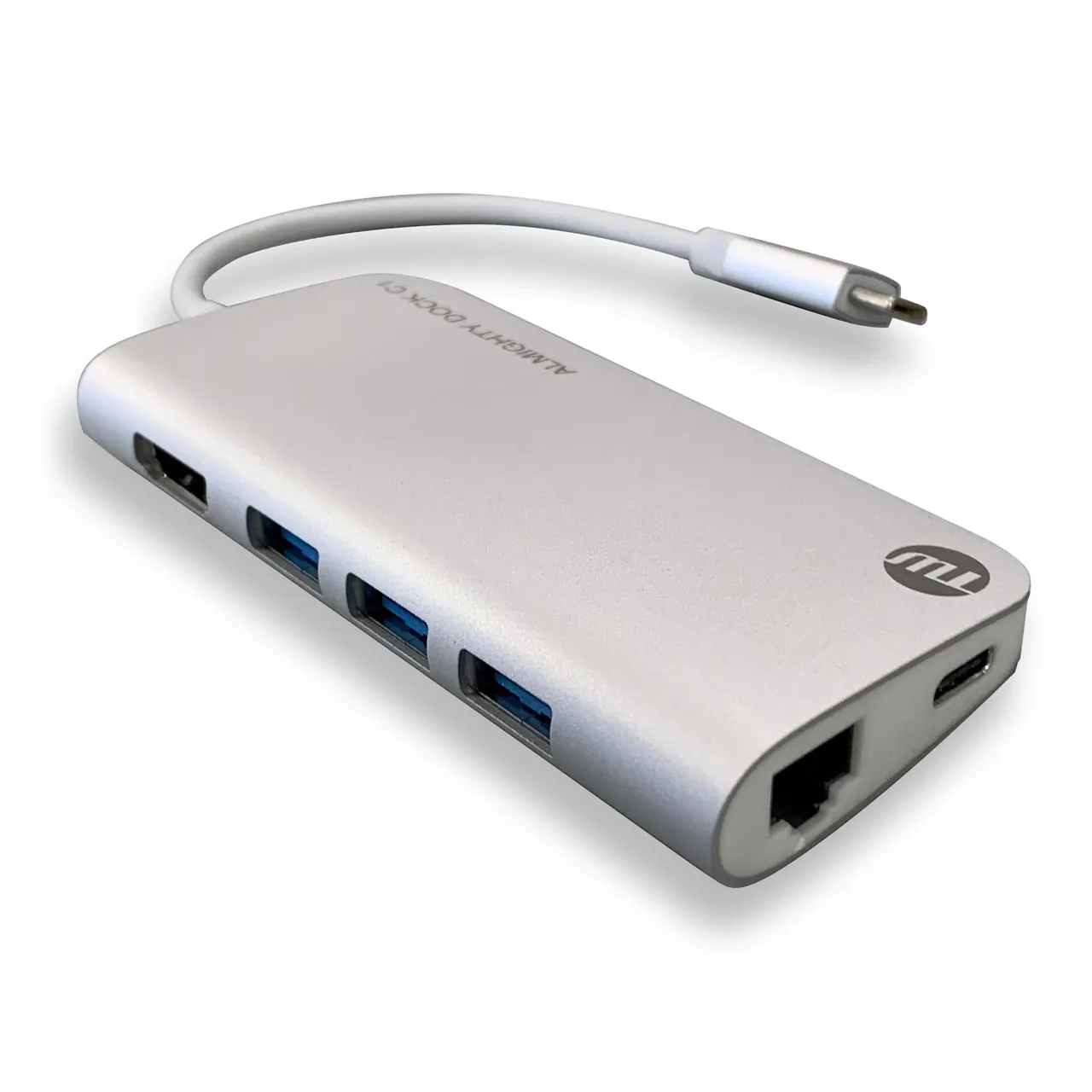
- If you connect a laptop every day, consider a dock so one cable carries power, screens and accessories. Our guide to docking stations and USB hubs explains how.
Checkpoint: you have a short list of devices on the desk, and each cable has a clear destination.
Route and fasten the cables
- Fit the cable tray or clips along the back edge or underside of the desk.
- Plug the power strip in and place it in the tray.
- Connect power cables first, running them straight down into the tray. Bundle extra length into loose loops and secure each with a hook-and-loop tie.
- Run video and network cables along the same path, then up to each device, leaving a small service loop at both ends.
- Bundle cables that travel together, such as a monitor’s power and video cables, in a sleeve or with ties every short distance.
- For a sit-stand desk, leave enough slack for the highest position and test the full range of movement.
Checkpoint: nothing hangs loose across the floor, and every cable reaches its device without being stretched.
Label and store
- Label both ends of each cable with the device it belongs to, such as “monitor HDMI” or “printer power”.
- Label chargers with the device name, since many look alike but supply different power.
- Store rarely used cables coiled loosely, each with its own tie, in the spare-cables box with a label on the outside.
- Keep a short list of your setup, or the photo you took, with the box.
Organize the desk surface
- Keep the area in front of the keyboard clear for writing and resting your arms.
- Use one tray for pens and notes and one place for chargers you use daily.
- Put paper files in a vertical holder or drawer rather than in piles.
- Wipe the desk and tidy the surface at the end of each week.
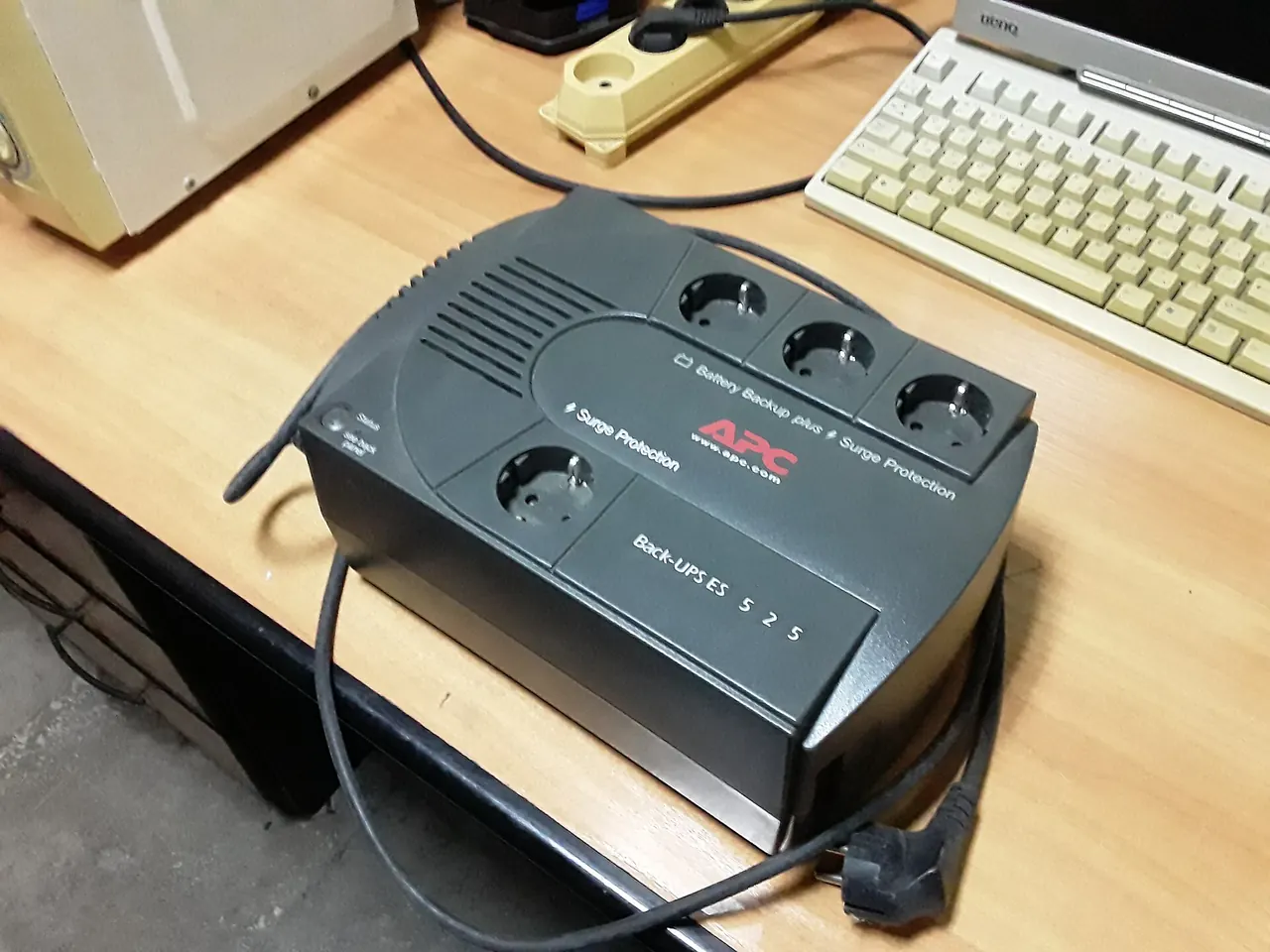
Our surge protector and UPS guide explains choosing and placing the power strip safely.
Check that it worked
Plug in and switch everything on, then sit down for a normal working session. Every device should work as before, you should be able to unplug the laptop or a device without hunting for its cable, and you should be able to see the floor under the desk. Push the chair back and forward a few times to check no cables catch on wheels or feet.
If something goes wrong
- A device stopped working after tidying: check its cable is fully inserted at both ends and that it’s in the right port, using your photo.
- A cable is now too short: remove one tie to release some of the loop, or replace it with a longer cable of the same type.
- The power strip feels warm: you may have too many high-power devices on it. Move some to another outlet and check the strip’s rating label.
- USB devices disconnect: avoid tight bends near the plug and make sure the cable isn’t pulling on the port. Microsoft’s USB-C troubleshooting page also helps on Windows.
- Cables keep sliding out of the tray: add more clips, or use a deeper tray.
If a cable or charger is damaged, stop using it and replace it with one the device maker approves.
FAQ
Should I use zip ties or hook-and-loop ties?
Hook-and-loop ties are reusable and gentler on cables. Plastic zip ties can be pulled too tight and have to be cut to make changes.
Is it safe to hide cables under a rug?
No. Cables under rugs can overheat or be damaged without anyone noticing. Use cable covers made for floors, or route cables along walls.
Can I plug one power strip into another?
Don’t chain power strips together. Use a single strip with enough outlets, or move some devices to another wall outlet.
How often should I redo my cable setup?
Only when you add or remove equipment. A quick monthly check for loose ties, worn cables and dust is enough otherwise.
What’s the quickest improvement I can make?
Fit a cable tray under the desk and put the power strip in it. That lifts most cables off the floor in a few minutes.
Official documentation
These links go to official help pages from software and device makers or US government agencies. GuideTutor is not affiliated with them. When their instructions differ from ours, follow theirs.