USB-C Charging Explained: Laptops, Phones and Shared Chargers
USB-C charging explained: how chargers and cables agree on power, how to read wattage labels, and how to share one charger safely between laptop and phone.
- By GuideTutor Editorial Team
- Published
- Last reviewed
- 4 min read
- Level
- Beginner
- Time needed
- 15–20 minutes
- Works with
- Laptops, phones, tablets and accessories that charge over USB-C; Windows laptops and MacBooks
You’ll need
- The charger that came with your laptop, or its wattage from the label
- The USB-C cables you use, ideally with their packaging or labels
- Your devices’ model names, to check charging details on the makers’ sites
In short
USB-C charging lets one style of connector charge laptops, phones, tablets and accessories, but the power each one gets depends on the charger, the cable and the device working together. This guide explains how that works, how to read charger and cable labels, and how to set up shared charging at a desk safely. The key tip: a laptop needs a charger with enough watts for it; a small phone charger may charge it very slowly or not at all.
Before you start
Look at your laptop’s original charger. Its label shows the power output in watts (W). That number is your reference: a replacement or shared charger should supply at least that much for normal charging speed.
Check which ports on your laptop accept charging. Many laptops charge only through certain USB-C ports, often marked with a charging or lightning symbol. The maker’s specifications list them, and our laptop battery and charging guide covers what to do when a laptop won’t charge.
Key terms
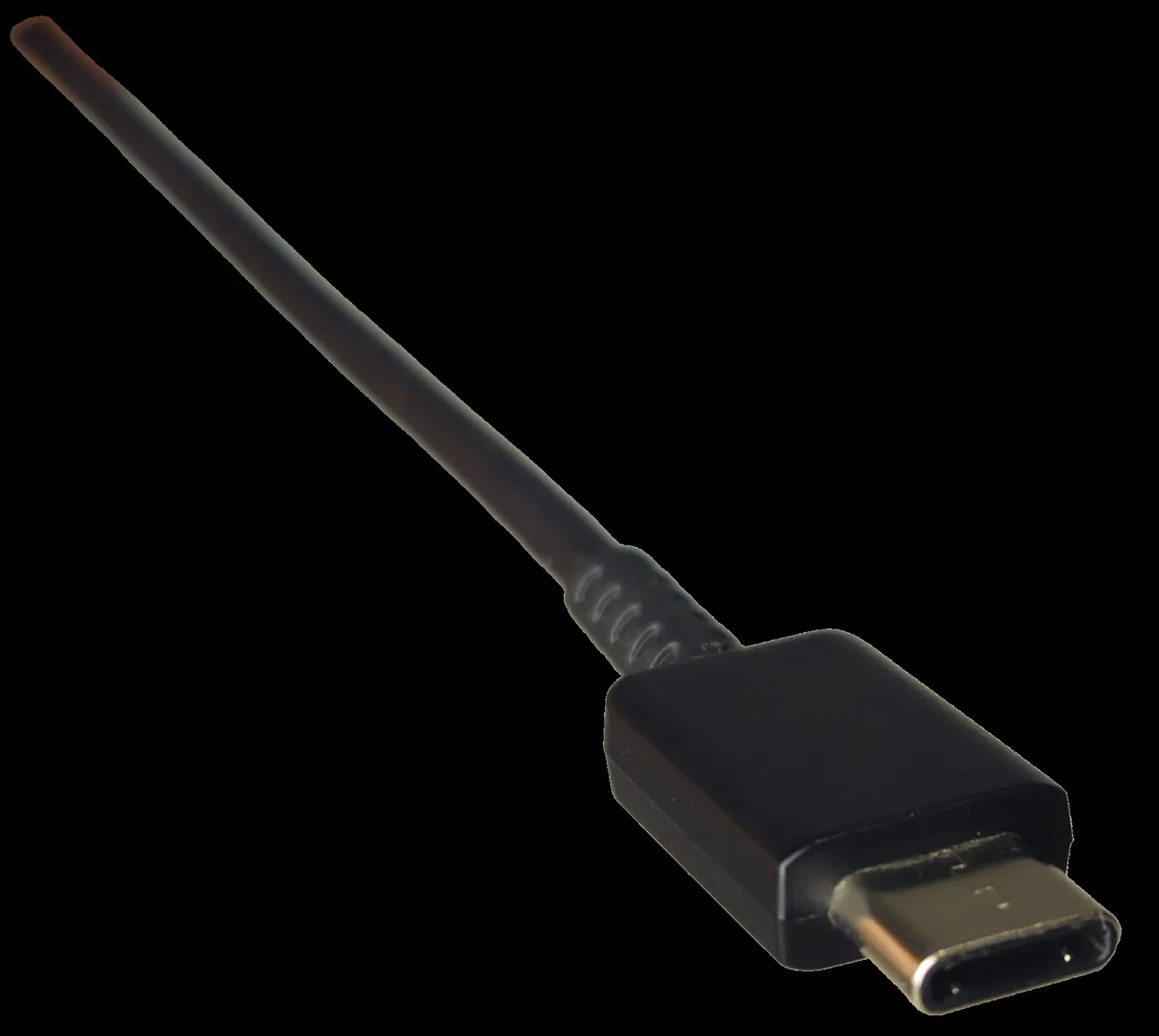
- USB-C: the small, reversible connector. It describes the plug shape, not the speed or power.
- USB Power Delivery (USB PD): the standard that lets a charger and device agree on a safe amount of power.
- Watts (W): the measure of charging power. Laptops typically need more watts than phones.
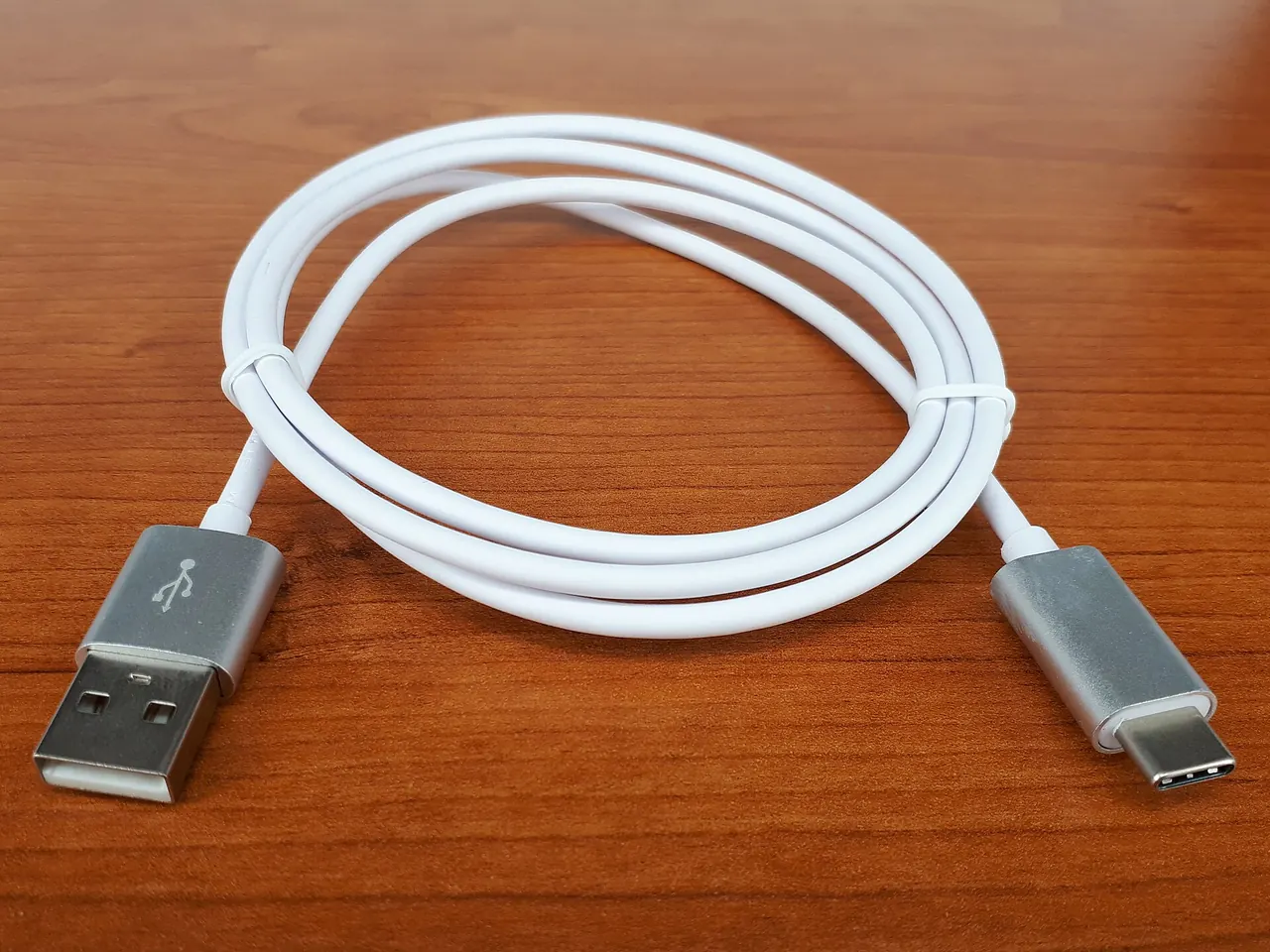
- Cable rating: USB-C cables are built for a maximum power. Higher-power laptops may need a cable rated for higher power, commonly labeled 60 W or 240 W.
- Multiport charger: one charger with several ports that shares its total power between connected devices.
How charging power is decided
- When you plug in, the charger and device communicate and agree on a power level both support.
- The device takes the lower of what it can accept and what the charger can supply.
- The cable must also support that power; if it can’t, charging is limited to what the cable allows.
- As the battery fills, the device usually slows charging down on purpose, so the last part takes longer.
Checkpoint: you know your laptop charger’s wattage and which laptop ports accept charging.
Choose and share chargers
- For a laptop, choose a USB PD charger with at least the wattage of the original charger, from a reputable maker that lists your device type as supported.
- For a multiport charger, check how it shares power. Many give the most to the first port and split power when several devices are connected, which the product details or labels describe.
- Use a USB-C cable rated for at least the power your laptop needs. Keep the laptop’s own cable with the laptop charger.
- Phones and accessories can use lower-power ports or a separate charger.
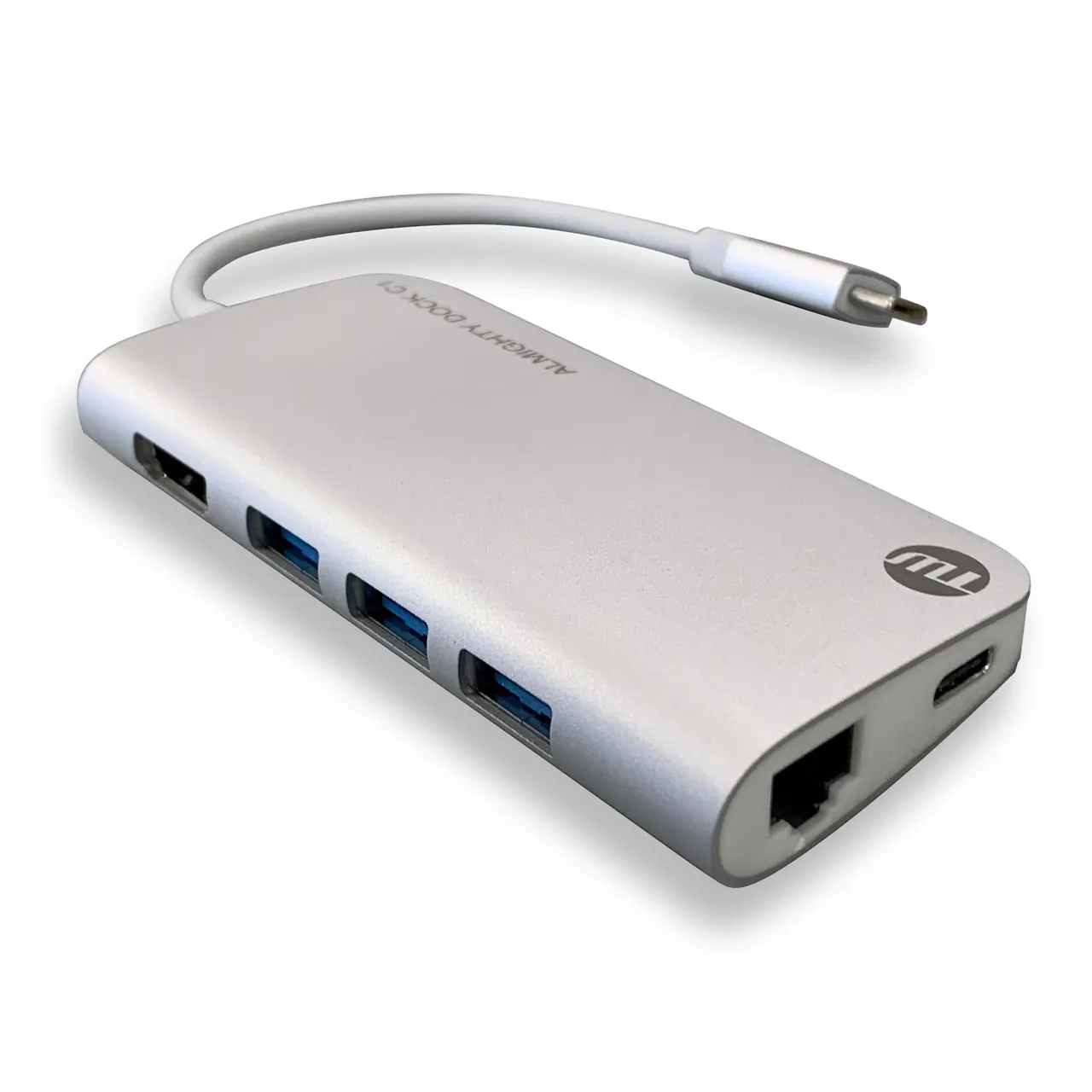
- If you use a docking station that charges the laptop, compare its charging wattage with your laptop charger. Our guide to docking stations and USB hubs covers this.
Set up a tidy charging spot
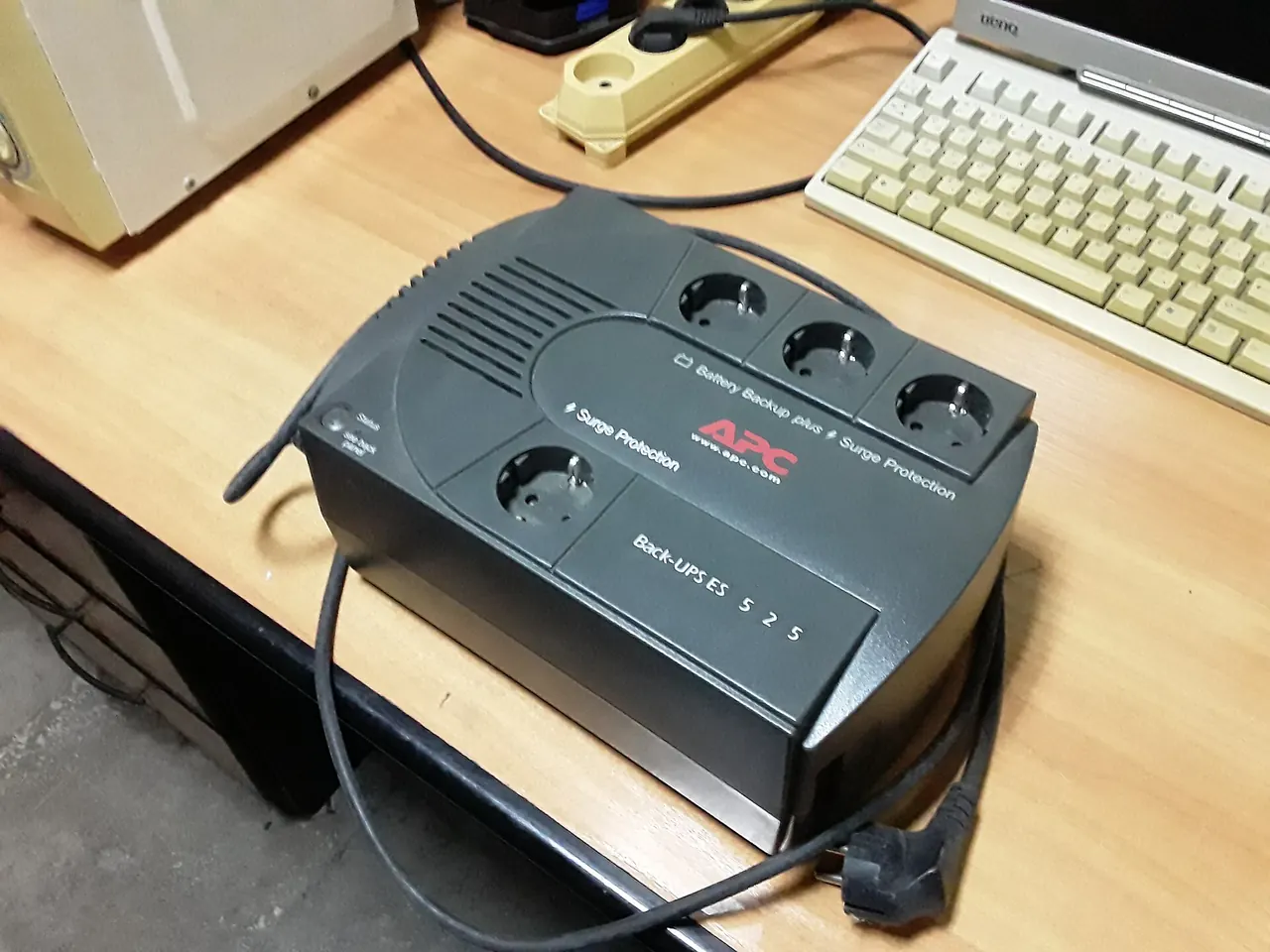
- Place chargers on a surge-protected power strip, as described in our surge protector and UPS guide.
- Label each cable or charger with the device it suits, especially if several look alike.
- Keep chargers on a hard surface with air around them; they get warm during use.
- On Windows, open Settings > System > Power & battery to check charging status and battery settings. On a Mac, open System Settings > Battery.
- Turn on your laptop maker’s battery care setting if you keep the laptop plugged in most of the time and the maker offers one.
Check that it worked
Plug the laptop into your chosen charger and cable. The battery icon should show it is charging, and Windows should not show a “slow charger” message. Use the laptop normally for an hour; the battery level should rise or stay steady while plugged in. Then connect your phone to the shared charger and confirm both charge together.
If something goes wrong
- ”Slow charger” or “plugged in, not charging” appears: the charger or cable may not supply enough power. Try the laptop’s original charger and cable, and check the maker’s battery care settings.
- The laptop charges from one USB-C port but not another: not every port accepts charging. Check the maker’s specifications.
- Charging stops and starts: try another cable, check the port for lint, and avoid tight bends near the plug. Microsoft’s USB-C troubleshooting page helps on Windows.
- The charger gets very hot: unplug it, let it cool and stop using it if it continues. Replace it with a reputable one.
- A phone charges slowly on a multiport charger: other connected devices may be taking most of the power. Unplug one or use another port.
For device-specific charging questions, contact the device maker through its official support site.
FAQ
Can I charge my laptop with my phone charger?
It may charge very slowly, only while the laptop is off, or not at all, because phone chargers usually supply fewer watts. It is generally safe to try with reputable chargers, but use a laptop-rated charger for everyday work.
Is a higher-watt charger safe for my phone?
With USB Power Delivery, the device only takes the power it can accept, so a reputable higher-watt USB PD charger is designed to be safe for phones.
Are all USB-C cables the same?
No. They differ in power rating, data speed and whether they carry video. Labels or packaging usually say which features a cable supports.
Why does my laptop charge slowly at the end?
Most devices reduce charging speed as the battery nears full to protect it. This is normal.
Can I charge a laptop through a USB-C hub?
Only if the hub supports pass-through charging and has its own power supply connected. Check the hub’s description and the laptop maker’s guidance.
Official documentation
These links go to official help pages from software and device makers or US government agencies. GuideTutor is not affiliated with them. When their instructions differ from ours, follow theirs.